The NEW Approach to Resolving Common Low Frequency Problems
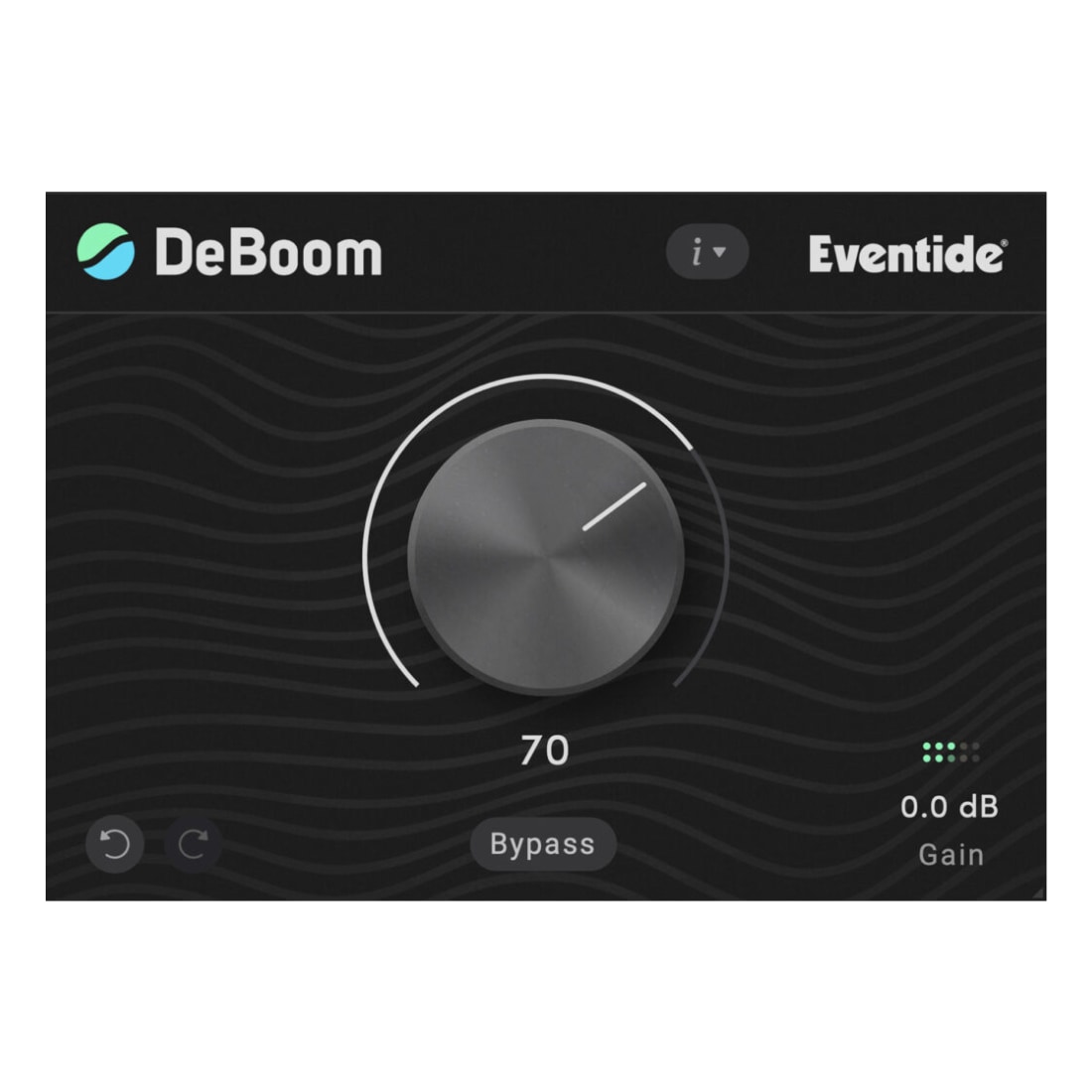
DeBoom is a purpose-driven tool for surgically addressing common low frequency equalization problems. Kick drums, bass, and similar sound sources can contribute to low frequency “muddiness.” Traditional EQs ‘solve’ the problem but cause collateral damage – the drum’s thump goes out with the boom. The bass attack gets tossed with its resonance. DeBoom solves this problem by using Eventide’s patented Structural Split technology to EQ the tonal portion of the sound separately from the transient. Power users have been doing exactly this using the full-featured SplitEQ plugin. We’ve put the power of SplitEQ in DeBoom and reduced it to a single, powerful, one knob gesture.
Structural Split
The beating heart of DeBoom. Whatever instrument you process, DeBoom analyzes the incoming audio and separates these components into their respective Transient (noise, pops, mic plosives, vocal sibilance, attacks) and Tonal (sustained notes, harmonics, tone, ambiance) elements.
DeBoom uses this information to apply specially crafted EQ curves to the tonal layer of the incoming audio, removing boom and reshaping sounds instantly.
Just One Knob
A straightforward user interface focused specifically on what matters: De-booming without de-thudding. Turn the dial, lose the mud and keep the thud. DeBoom’s user interface also includes undo/redo, input gain and built-in bypass.
Step-by-Step Guide: Register & Install Your Eventide Plugins from Plugin Discounts
Activating Eventide Codes (Purchased from Plugin Discounts)
Follow these steps to enable your license and access the installer:
- Step 1: Log in to your Eventide account
Go to https://www.eventideaudio.com/my-account. Create an account if you don’t have one. - Step 2: Register your plugin
Go to My Account → Register Products (or “Register a New Product”).
Enter your Serial Number and License Key.
Also enter your iLok.com username.
Submit — the license is automatically sent to your iLok account. - Step 3: Download the installer
Go to the Downloads page.
Download the correct installer for your OS (Mac or Windows) and plugin format (VST/AU/AAX). - Step 4: Install the plugin(s)
Windows: Run the .exe installer.
macOS: Open the .dmg and run the .pkg installer.
Follow the on-screen prompts. - Step 5: Authorize with iLok License Manager
Download/install iLok License Manager from www.ilok.com if you don’t have it.
Open iLok License Manager → sign in.
Find your Eventide license and drag it to your Computer (or iLok dongle).
Click Activate. - Step 6: Open your DAW
Launch your DAW and rescan for new plugins. The Eventide plugin should now appear and work.
Notes:
- Eventide plugins require iLok authorization (no physical dongle needed unless you choose one).
- Supported DAWs: Most major ones that support VST, AU, or AAX.
If you run into issues, check the official troubleshooting on the same page.