New Rhythmic Options
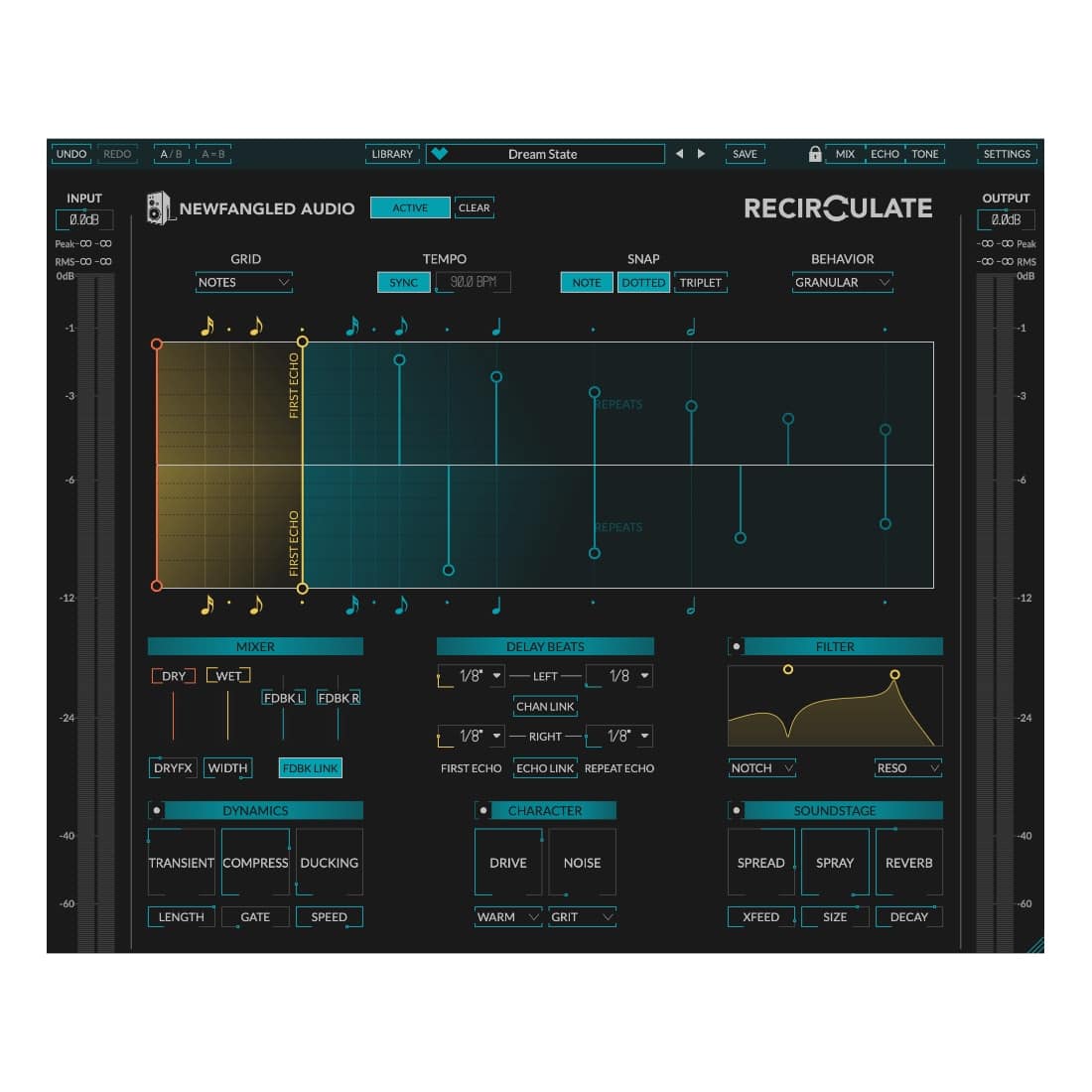
A feedback delay can add rhythmic spice to your production, but the options are on-beat, or off-beat. Recirculate fixes this by adding control over the all important first echo. Set a downbeat echo with dotted repeats for a subtle shuffle feel. Or an eighth note first echo with quarter note repeats for a straight echo on the upbeats. It sounds simple, but it’s an incredibly powerful rhythmic tool.
Control What You Hear
Many delay plug-ins attempt to recreate specific technologies. Recirculate focuses instead on controls you can hear. Dial in filters, drive, compression, and reverb right from the front panel. Does it sound just like a piece of gear from 1963? Who cares, it sounds like you.
Sits In Your Mix
Modern productions can be pretty full. Delay and reverb are important tools for adding glue and a sense of space, but it can be hard to fit them into a dense mix. Recirculate adds features like a transient control, ducking, gating, and powerful filtering to add depth and dimension to your mix without taking up too much space.
Heaps of Character
The brilliant thing about a feedback delay is that the character gets applied over and over with each repeat. Recirculate has 7 overdrive character options, 4 noise options, a compressor, modulation, granular delay, and a reverb that goes from slightly diffuse to epic, all of which get applied to each repeat. Again, and again. For Brando levels of character.
Step-by-Step Guide: Register & Install Your Newfangled Plugins from Plugin Discounts
Activating Newfangled Codes (Purchased from Plugin Discounts)
Follow these steps to enable your license and access the installer:
- Step 1: Log in to your Eventide account
Go to https://www.eventideaudio.com/my-account. Create an account if you don’t have one. - Step 2: Register your plugin
Go to My Account → Register Products (or “Register a New Product”).
Enter your Serial Number and License Key.
Also enter your iLok.com username.
Submit — the license is automatically sent to your iLok account. - Step 3: Download the installer
Go to the Downloads page.
Download the correct installer for your OS (Mac or Windows) and plugin format (VST/AU/AAX). - Step 4: Install the plugin(s)
Windows: Run the .exe installer.
macOS: Open the .dmg and run the .pkg installer.
Follow the on-screen prompts. - Step 5: Authorize with iLok License Manager
Download/install iLok License Manager from www.ilok.com if you don’t have it.
Open iLok License Manager → sign in.
Find your Eventide license and drag it to your Computer (or iLok dongle).
Click Activate. - Step 6: Open your DAW
Launch your DAW and rescan for new plugins. The Eventide plugin should now appear and work.
Notes:
- Newfangled Audio plugins require iLok authorization (no physical dongle needed unless you choose one).
- Supported DAWs: Most major ones that support VST, AU, or AAX.
- If you run into issues, check the official guide at https://www.eventideaudio.com/support/installing-and-authorizing-plug-ins/