Fixate:Midrange – Intelligent Midrange Correction Plugin
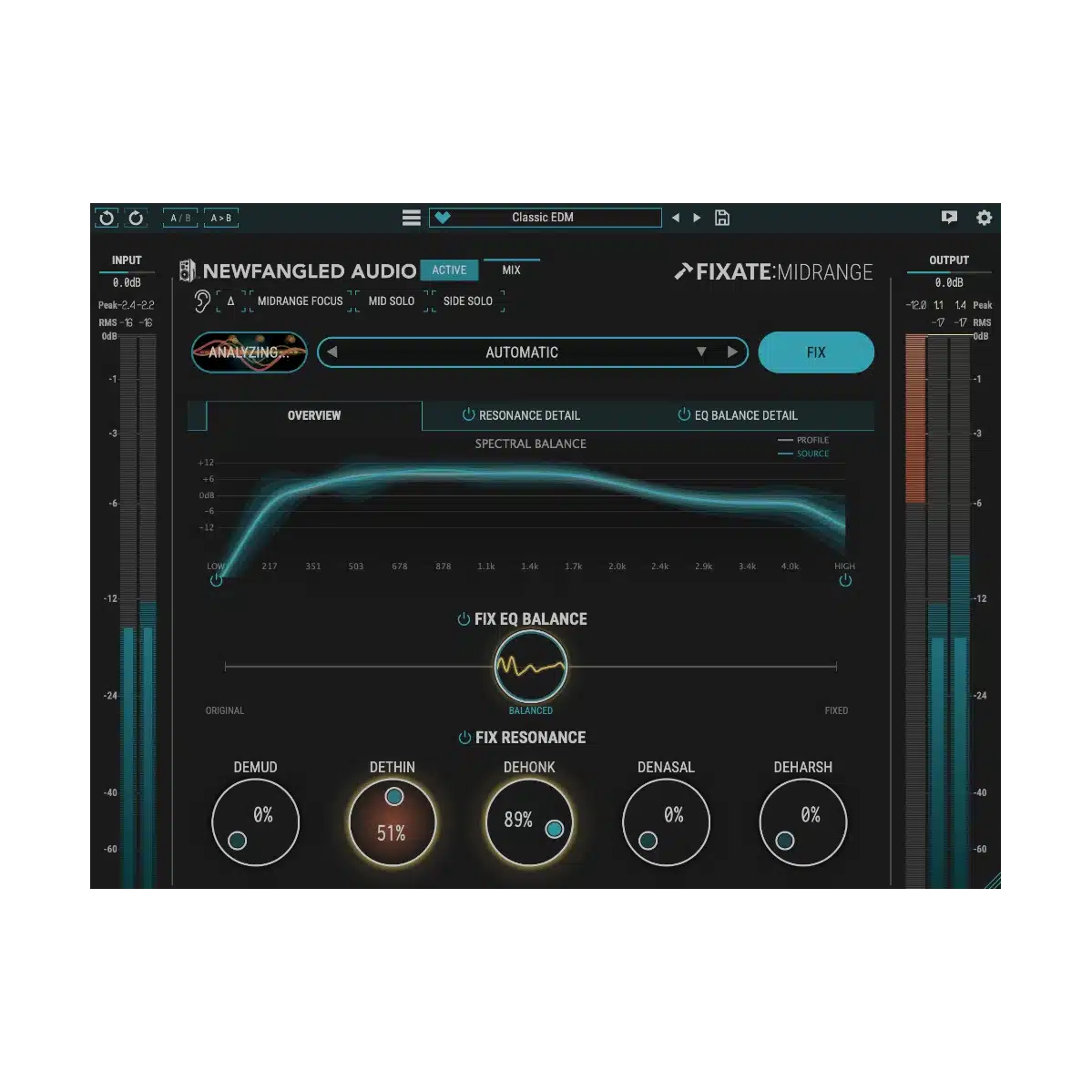
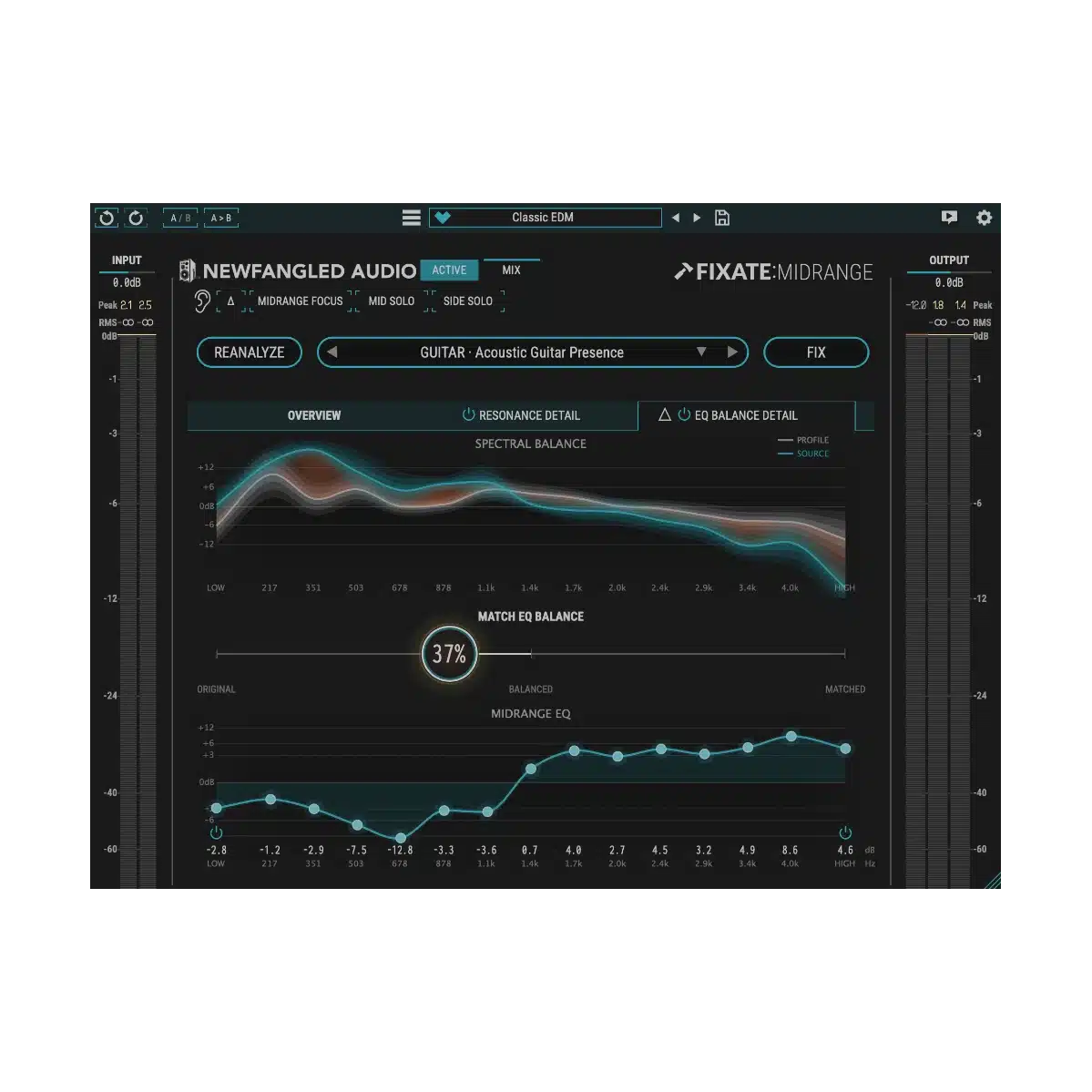
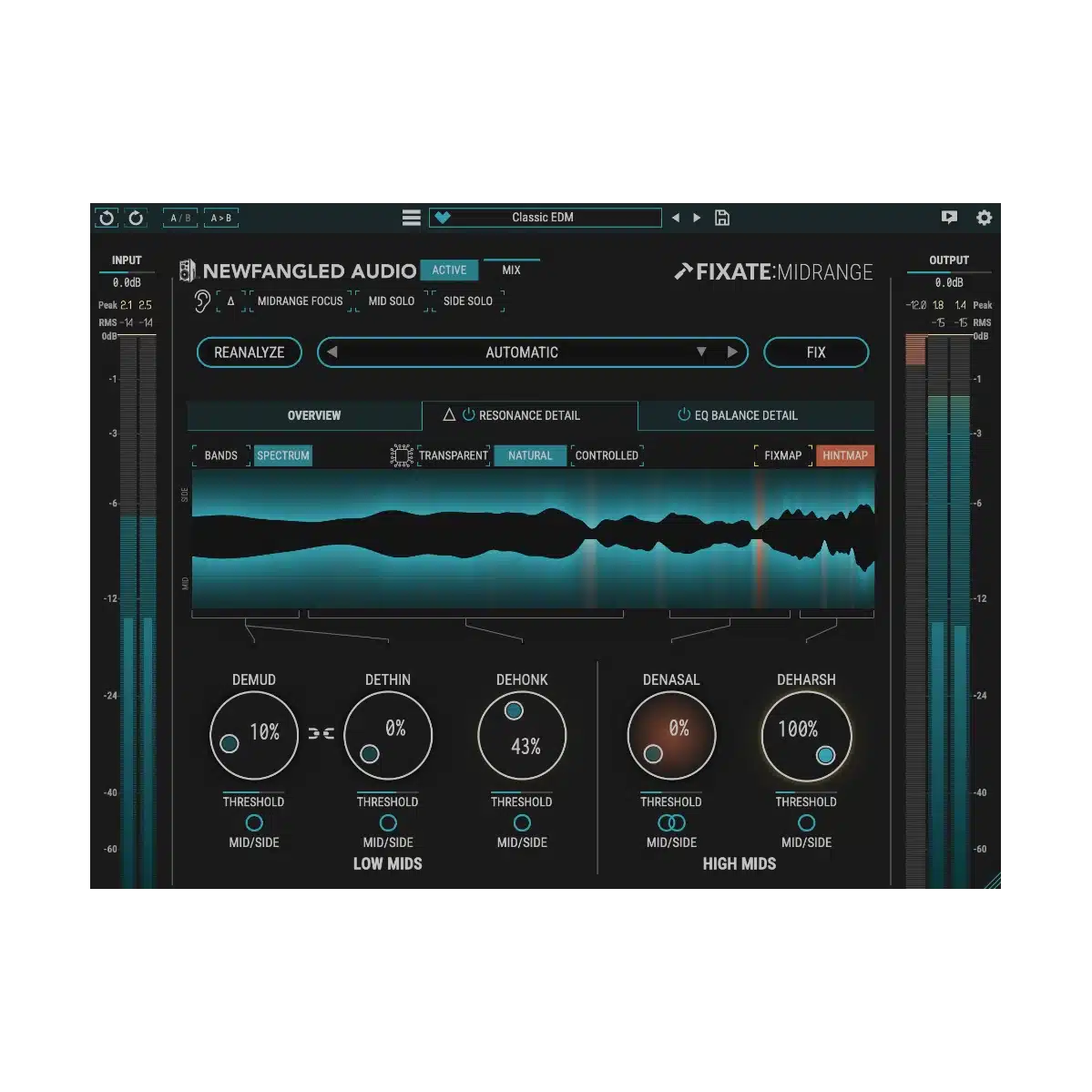
Tired of muddy mixes, harsh vocals, or that boxy, nasal tone that just won’t sit right? Fixate:Midrange is the intelligent EQ plugin that automatically detects and fixes the six most common midrange problems — Mud, Thinness, Honk, Nasalness, Harshness, and Spectral Imbalance — while preserving the natural character of your sound.
One-Click Midrange Clarity
Built on a model of human hearing, Fixate:Midrange analyzes your audio in real time and applies dynamic, signal-dependent corrections exactly where needed. Just hit Analyze + Fix and instantly hear a cleaner, more balanced midrange — no guesswork, no endless EQ tweaking.
Key Features:
- Smart Midrange Analysis – Instantly identifies the six most common midrange issues using human-hearing modeling
- Demud – Clears low-mid mud without losing body or warmth
- Dethin – Restores missing presence and fullness
- Dehonk – Tames boxy, nasal resonances
- Denasal – Smooths harsh, honky vocal tones
- Deharsh – Reduces ear-fatiguing high-mid sharpness
- Spectral Balance – Intelligently balances the entire midrange across 15 bands
- One-Click Analyze + Fix – Full automatic workflow or manual fine-tuning when you want it
Fixate:Midrange works transparently on individual tracks, buses, or even your full master. Perfect for vocals, guitars, synths, drums, and dense modern productions where the midrange is the busiest — and most problematic — part of the mix.
Stop fighting your mids and start hearing what your mix was always meant to sound like.
Step-by-Step Guide: Register & Install Your Newfangled Plugins from Plugin Discounts
Activating Newfangled Codes (Purchased from Plugin Discounts)
Follow these steps to enable your license and access the installer:
- Step 1: Log in to your Eventide account
Go to https://www.eventideaudio.com/my-account. Create an account if you don’t have one. - Step 2: Register your plugin
Go to My Account → Register Products (or “Register a New Product”).
Enter your Serial Number and License Key.
Also enter your iLok.com username.
Submit — the license is automatically sent to your iLok account. - Step 3: Download the installer
Go to the Downloads page.
Download the correct installer for your OS (Mac or Windows) and plugin format (VST/AU/AAX). - Step 4: Install the plugin(s)
Windows: Run the .exe installer.
macOS: Open the .dmg and run the .pkg installer.
Follow the on-screen prompts. - Step 5: Authorize with iLok License Manager
Download/install iLok License Manager from www.ilok.com if you don’t have it.
Open iLok License Manager → sign in.
Find your Eventide license and drag it to your Computer (or iLok dongle).
Click Activate. - Step 6: Open your DAW
Launch your DAW and rescan for new plugins. The Eventide plugin should now appear and work.
Notes:
- Newfangled Audio plugins require iLok authorization (no physical dongle needed unless you choose one).
- Supported DAWs: Most major ones that support VST, AU, or AAX.
- If you run into issues, check the official guide at https://www.eventideaudio.com/support/installing-and-authorizing-plug-ins/