Features:
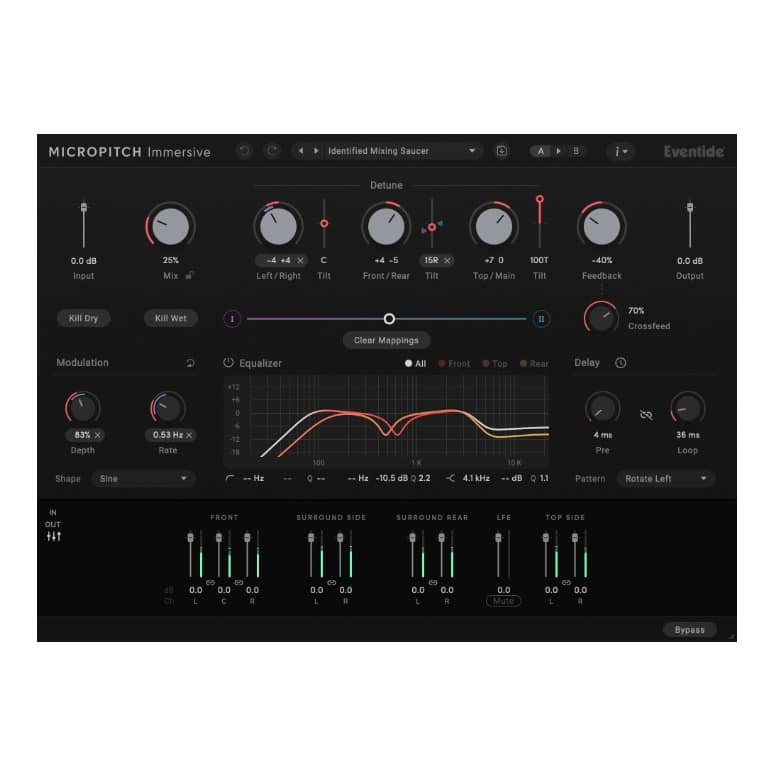
- Powerful and flexible detuning – widen sources in 3D space, or add Feedback and turn up Crossfeed for verb-like sheen
- Enhanced delay and modulation capability – create slapbacks, add movement with pitch modulation, or create exciting motion with patterned Loop Delay
- Supports LCR, Quadraphonic, 5.0 – 5.1.4, and 7.0 – 7.1.4 channel layouts
- Easy-to-use UI optimized for immersive workflows – same controls for all channel layouts, with no menu diving required
- Transparent signal processing – effect always sounds the same across all immersive formats, and always maintains incoming spatial image integrity
- Quickly set individual speaker levels using the integrated Levels section
- Kill Dry, Kill Wet, and Freeze controls are great for creating drastic effects
- Mix Lock allows for scrolling through presets or settings while keeping the wet/dry mix constant
- Resizable GUI with Undo/Redo and A/B comparison
- Comprehensive Presets Library includes over 40 presets
Step-by-Step Guide: Register & Install Your Eventide Plugins from Plugin Discounts
Activating Eventide Codes (Purchased from Plugin Discounts)
Follow these steps to enable your license and access the installer:
- Step 1: Log in to your Eventide account
Go to https://www.eventideaudio.com/my-account. Create an account if you don’t have one. - Step 2: Register your plugin
Go to My Account → Register Products (or “Register a New Product”).
Enter your Serial Number and License Key.
Also enter your iLok.com username.
Submit — the license is automatically sent to your iLok account. - Step 3: Download the installer
Go to the Downloads page.
Download the correct installer for your OS (Mac or Windows) and plugin format (VST/AU/AAX). - Step 4: Install the plugin(s)
Windows: Run the .exe installer.
macOS: Open the .dmg and run the .pkg installer.
Follow the on-screen prompts. - Step 5: Authorize with iLok License Manager
Download/install iLok License Manager from www.ilok.com if you don’t have it.
Open iLok License Manager → sign in.
Find your Eventide license and drag it to your Computer (or iLok dongle).
Click Activate. - Step 6: Open your DAW
Launch your DAW and rescan for new plugins. The Eventide plugin should now appear and work.
Notes:
- Eventide plugins require iLok authorization (no physical dongle needed unless you choose one).
- Supported DAWs: Most major ones that support VST, AU, or AAX.
If you run into issues, check the official troubleshooting on the same page.