
Features:
Play the Ribbon
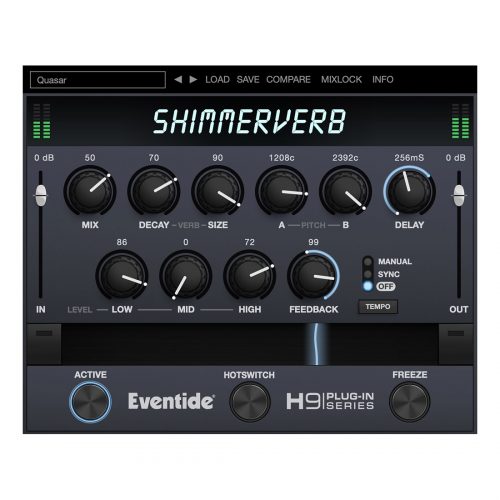
The innovative RIBBON control allows you to modulate many parameters at once. Manipulate the pitches to play it like an instrument or slowly increase feedback to make your signal explode into infinity. Need some extra gusto? Hold down the FLEX button to shift one octave up from the current pitch.
- Two pitch-shifters, each with a four-octave range from two octaves down to two octaves up
- Two independently adjustable delays, up to 4 seconds each, with their own individual feedback
- Reverb with 100 seconds of decay
- Make it musical by micro-pitching each voice around the 4th (500 cents), 5th (700 cents), or octave (1200 cents)
- Smooth out delay grains by applying up to 4 seconds of delay for each voice
- RIBBON lets you ‘play’ the effect in real-time and provides dynamic and fluid control to morph back and forth between the settings of your choice
- FLEX shifts both voices up one octave at the push of a button
- MIXLOCK keeps MIX control constant as you audition presets
- Available for Mac and PC as VST, AAX, and AU plug-in
- Available as an Audio Units AUv3 plug-in, Inter-App Audio, and Standalone App
Step-by-Step Guide: Register & Install Your Eventide Plugins from Plugin Discounts
Activating Eventide Codes (Purchased from Plugin Discounts)
Follow these steps to enable your license and access the installer:
- Step 1: Log in to your Eventide account
Go to https://www.eventideaudio.com/my-account. Create an account if you don’t have one. - Step 2: Register your plugin
Go to My Account → Register Products (or “Register a New Product”).
Enter your Serial Number and License Key.
Also enter your iLok.com username.
Submit — the license is automatically sent to your iLok account. - Step 3: Download the installer
Go to the Downloads page.
Download the correct installer for your OS (Mac or Windows) and plugin format (VST/AU/AAX). - Step 4: Install the plugin(s)
Windows: Run the .exe installer.
macOS: Open the .dmg and run the .pkg installer.
Follow the on-screen prompts. - Step 5: Authorize with iLok License Manager
Download/install iLok License Manager from www.ilok.com if you don’t have it.
Open iLok License Manager → sign in.
Find your Eventide license and drag it to your Computer (or iLok dongle).
Click Activate. - Step 6: Open your DAW
Launch your DAW and rescan for new plugins. The Eventide plugin should now appear and work.
Notes:
- Eventide plugins require iLok authorization (no physical dongle needed unless you choose one).
- Supported DAWs: Most major ones that support VST, AU, or AAX.
If you run into issues, check the official troubleshooting on the same page.