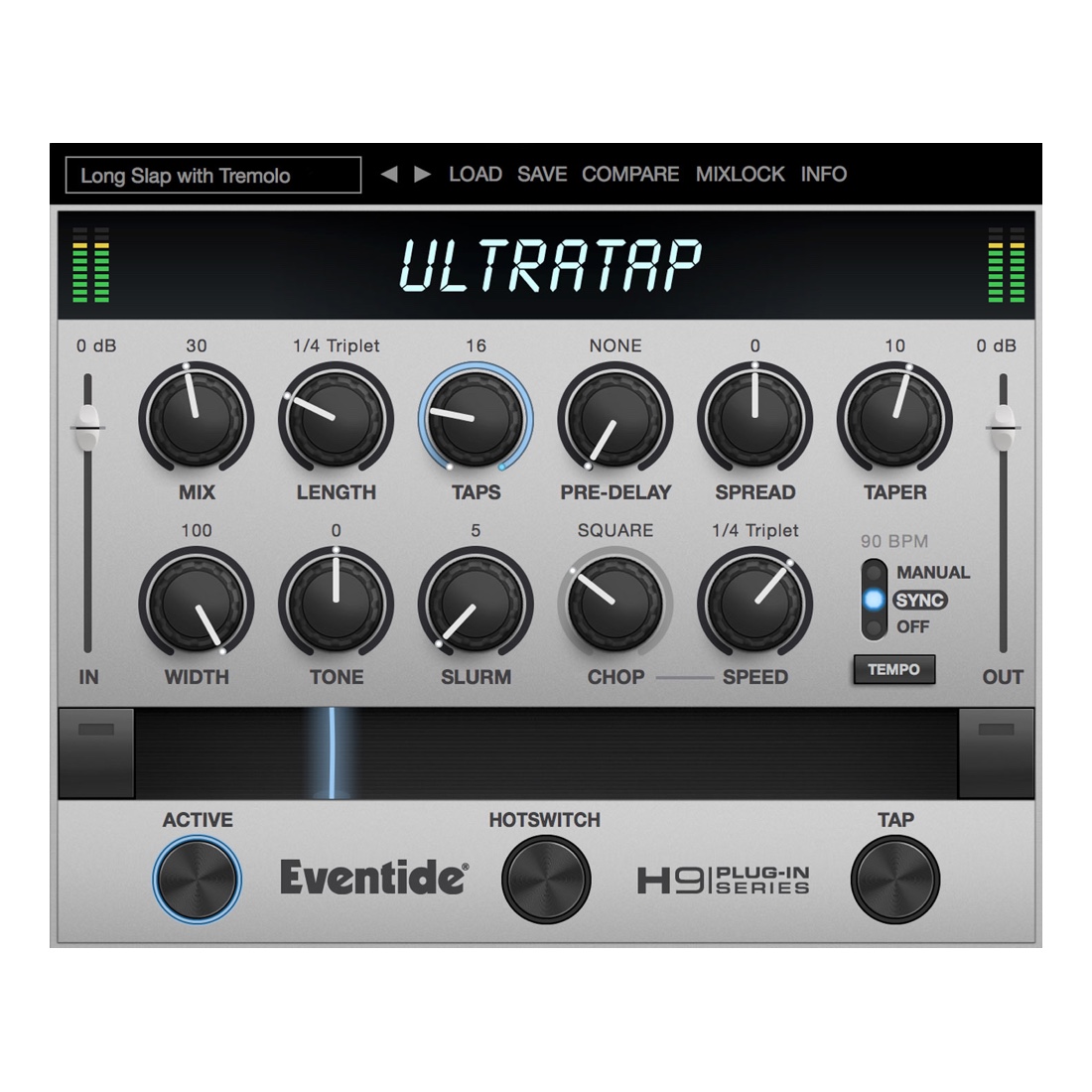
UltraTap is a unique multi-tap effect capable of rhythmic delays, glitchy reverbs, huge pad-like volume swells and extraordinary modulation. It’s the perfect tool for creating drum fills, vocal choruses, swelling guitar chords and other evolving effects. It features over 150 expansive presets including artist presets from Chris Carter, Colin Newman, and Sasha among others.
Step-by-Step Guide: Register & Install Your Eventide Plugins from Plugin Discounts
Activating Eventide Codes (Purchased from Plugin Discounts)
Follow these steps to enable your license and access the installer:
- Step 1: Log in to your Eventide account
Go to https://www.eventideaudio.com/my-account. Create an account if you don’t have one. - Step 2: Register your plugin
Go to My Account → Register Products (or “Register a New Product”).
Enter your Serial Number and License Key.
Also enter your iLok.com username.
Submit — the license is automatically sent to your iLok account. - Step 3: Download the installer
Go to the Downloads page.
Download the correct installer for your OS (Mac or Windows) and plugin format (VST/AU/AAX). - Step 4: Install the plugin(s)
Windows: Run the .exe installer.
macOS: Open the .dmg and run the .pkg installer.
Follow the on-screen prompts. - Step 5: Authorize with iLok License Manager
Download/install iLok License Manager from www.ilok.com if you don’t have it.
Open iLok License Manager → sign in.
Find your Eventide license and drag it to your Computer (or iLok dongle).
Click Activate. - Step 6: Open your DAW
Launch your DAW and rescan for new plugins. The Eventide plugin should now appear and work.
Notes:
- Eventide plugins require iLok authorization (no physical dongle needed unless you choose one).
- Supported DAWs: Most major ones that support VST, AU, or AAX.
If you run into issues, check the official troubleshooting on the same page.